

Everyone wants the film look right now. Soft highlights, real grain, that slight glow around bright edges that makes digital footage feel a little less clinical. Getting there by hand in DaVinci Resolve takes time, a lot of nodes, and some color science. That’s the gap Dehancer Pro on DaVinci Resolve fills, and it does it by emulating actual photographic and motion picture film stocks instead of just slapping a LUT on top.
Here’s the thing: a film emulation plugin can look incredible in a demo and still crawl on your laptop. So this post covers what Dehancer Pro actually adds to Resolve, whether it’s worth paying for over the built-in tools, and how it runs on a MacBook before you start grading 4K with it. Fair warning, there are tradeoffs.
What Dehancer Pro Actually Adds to DaVinci Resolve
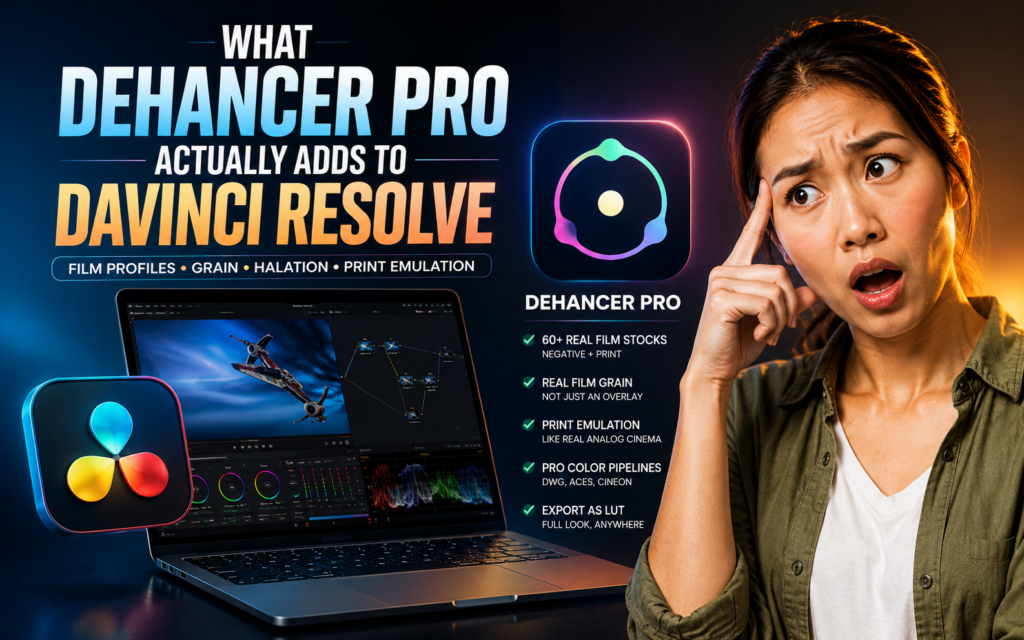
Dehancer Pro installs as an OFX plugin, so it lives right in your node graph like any other effect. Once it’s there, you’re working with a full film emulation stack rather than a single look.
Film Profiles, Grain, and the Halation Glow
The core of it is the film profiles. The current version ships with 60+ real photographic and motion picture film stocks, plus print films, halation, bloom, film damage, and a LUT generator. This is full Dehancer film emulation, not a quick filter: you drop the plugin on a node, pick a negative stock, optionally pick a print stock, and tune from there.
What stands out is the grain. In its honest review, Theotivity points out that Dehancer’s grain isn’t just a scanned overlay the way most plugins do it. The algorithm rebuilds the image with actual granules based on color and brightness, so the grain reacts to the picture the way it would on real film. It’s subtle, but in motion you can tell the difference.
Print Emulation and Color Pipelines
Where Dehancer goes deeper than most is print emulation, which mimics the final stage of analog cinema. RedShark’s review walks through how you can shape the look through Film Developer, Compression, and Expand controls and then export the whole thing as a LUT. It supports proper color pipelines too (DWG, ACES, Cineon), which matters for a color-managed workflow.
That depth is also the catch. As Mixing Light notes, Dehancer has its own particular way of handling signal input and output, and if you don’t set the source and output correctly, you’ll get unexpected results. It rewards reading the manual, which not everyone wants to hear.
Is Dehancer Pro Worth It Over Resolve’s Built-In Film Look Creator?
This is the question everyone asks, and it’s fair. Resolve 19 added a Film Look Creator that already does halation and bloom for free. So why pay?
Honestly, you can get really good results with the stock tool. Theotivity graded a full project using only Resolve’s built-in effects and it looked great. The difference is range and control. The Film Look Creator ships with a small handful of preset core looks, while Dehancer gives you dozens of named film stocks and far finer tuning over color separation, density, and tonal compression.
So the real answer comes down to how often you do this. If a true film look is occasional for you, the built-in tool is plenty and you’ll save the money. If you’re grading film looks regularly and want specific stocks with deep control, Dehancer saves setup time on every project. Treat it less as “which is better” and more as a workflow decision, the kind worth digging into in any honest software comparison before you commit.
How Does Dehancer Pro Run on a MacBook?
Now for the part most reviews skip. Dehancer is GPU-heavy, and that hits laptops harder than desktops. So if you’re running it on a MacBook, this section is for you.
Apple Silicon Handles It Better Than You’d Expect
The good news is that Apple Silicon does well here. Dehancer’s own performance notes say the plugin runs near real time up to Ultra HD on M1 Pro and M1 Max, roughly in line with a high-end NVIDIA RTX 3080. Newer chips only widen that, and the version history mentions up to 2x FPS gains on newer Apple Silicon thanks to Metal optimizations. On a modern MacBook Pro, basic grading with Dehancer stays smooth.
The base requirements are forgiving too. Per the official system requirements, you need any Apple Mac from 2012 or newer with a Metal-compatible GPU, and recent builds want macOS 13 Ventura or later plus Resolve 19. One thing to flag: older Intel Iris and Intel HD integrated graphics aren’t officially supported and can glitch, so an Intel MacBook with only integrated graphics is the weak spot, not Apple Silicon.
Where It Starts to Struggle
Here’s where it gets real. The “heavy” effects, Grain, Halation, and Bloom, are the ones that tank your frame rate. They rebuild and analyze the image, so they eat GPU and VRAM. Dehancer’s performance tips suggest 32 to 64GB of RAM for 4K RAW work, with VRAM scaling by resolution: 8GB for 4K, more for 6K and 8K.
On a MacBook, memory is unified, so RAM and VRAM come from the same pool. A base 8GB MacBook will feel the squeeze the moment you stack grain and halation on a 4K timeline, so if you’re buying a machine for this kind of grading, lean toward more unified memory. We get deeper into how Apple’s chips hold up under load in our MacBook reviews, and the pattern is consistent: memory headroom matters more than raw chip speed for sustained creative work.
Setting Up Dehancer Pro in DaVinci Resolve Without Tanking Your FPS
You don’t have to just accept slow playback. A few habits make Dehancer feel a lot lighter, and most are about not rendering the heavy stuff while you grade.
First, the basics: drag the plugin onto a node, set your source and exposure, then pick your film stock and print. Standard OFX flow, nothing exotic.
Next, manage the heavy effects. Dehancer’s own advice is to turn off Grain and Halation while grading and only enable them at the final stage. That alone keeps playback responsive for most of the job.
Then lean on Resolve’s standard speed tricks. Enable Proxy Mode to multiply your FPS, drop the timeline to Full HD while working and bump it back up for the final render, and use Render Cache so graded clips play in real time. Converting source footage to ProRes helps too, since Apple’s hardware decodes it with almost no extra load on modern Macs. None of this is unique to Dehancer, it’s just good grading hygiene, the same setup thinking we cover in our productivity workflows. To actually measure the difference these settings make, our benchmark tests are a decent place to start.
Who Should Actually Buy Dehancer Pro?
So who is this for? After looking at how it performs and what it costs you in setup, here’s my honest read.
If you’re a colorist or filmmaker who chases the film look on most projects, Dehancer Pro earns its place. The stock variety, the grain quality, and the print emulation are genuinely a step beyond the built-in tools, and the time saved adds up.
If you’re a hobbyist or you only need a filmic look now and then, I’d pump the brakes. Resolve 19’s Film Look Creator is free and good enough that you might never feel limited. There’s also a Dehancer Lite tier if you want a taste of the profiles without the full toolset or the full price.
And if you’re on an older Intel MacBook with integrated graphics, sort out your hardware before you sort out the plugin. Dehancer can only run as well as the GPU underneath it.
Final Thoughts
Dehancer Pro on DaVinci Resolve is one of the more complete film emulation options out there, and the look holds up under scrutiny, especially the grain. Two things to keep in mind: it’s GPU-hungry, so the heavy effects will test your MacBook’s memory, and it overlaps with a free built-in tool that’s better than most people assume. For occasional grades, the stock Film Look Creator is plenty. For people living in film looks every week, Dehancer is worth the money and the learning curve.
If you’re considering it, grab the two week trial, throw your actual footage at it, and watch your frame rate while the heavy effects are on. That tells you more than any demo will. And if you run your own playback and export tests, I’d love to hear what your hardware does with it.


29 Responses
brilliant
brilliant , I want dehancer pro
i wan dehancer
I want Deheancer pro
vv
I want Deheancer pro
I want Deheancer pro I want Deheancer pro
I want Deheancer pro
I want Deheancer pro
I want dehancer pro
I want dahancer pro
I want Deheancer pro
I want dehancer pro
i want deheancer pro
Je veux Deheancer Pro
i want deheancer pro
its says wrong password while cracking in terminal. Fraud
You had to enter your mac password in the terminal to give permission dumb fool!!
I want Dehancer pro
hello
I Want Dehancer Pro
I want dehancer
ı want dehancer pro davinci
I want dehancer pro
I want dehancer pro for davanci resolve
i want dehancer pro davinchi
i whant dehancer pro davinci
i want deheancer pro