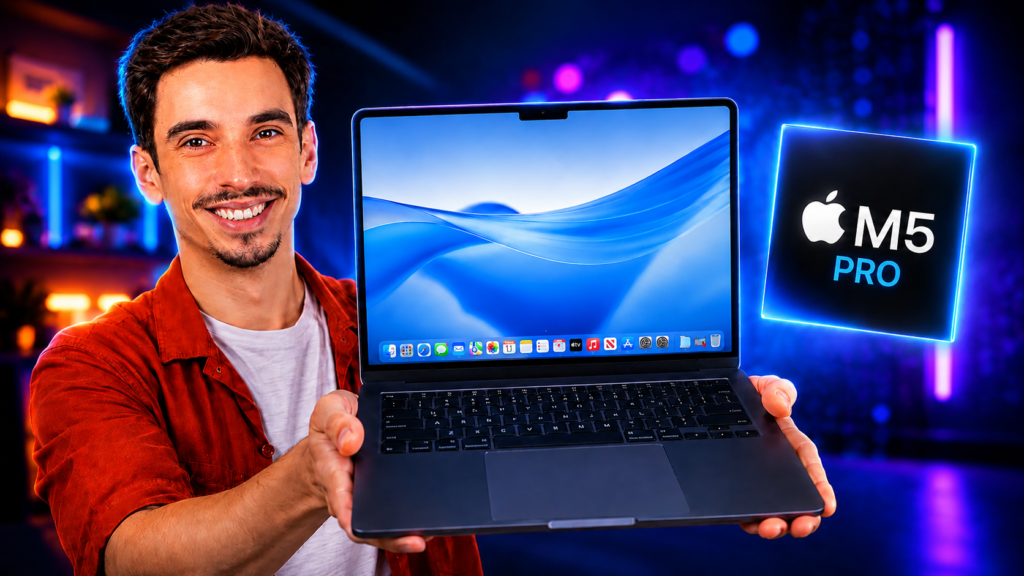
I spent the week trying to find where this chip breaks. It mostly didn’t. Here’s the diary version, and the honest answer on whether you need it.
The Quick Verdict
The M4 Pro is the middle child of the lineup, and after a week with it, I think it’s the sweet spot for most people who actually need a Pro. It’s dramatically faster than the base M4 in anything that leans on multiple cores, it gets Thunderbolt 5, and it doesn’t ask you to pay Max money for power you’ll never touch. The catch is the same one Apple always sets: the configuration you pick at checkout is the one you’re stuck with forever.
Buy it if
- You edit video, compile code, or run heavy multitasking daily
- You want real headroom without paying for the Max
- You need fast external storage over Thunderbolt 5
- You work with larger files or local AI models
Skip it if
- Your work is browsing, docs, and light photo edits (get the base M4)
- You do sustained 3D or 8K color grading (look at the Max)
- You want the lightest, cheapest way into a Pro
- You already own an M3 Pro and it’s keeping up
| Spec | Base M4 | M4 Pro (this review) | M4 Max |
|---|---|---|---|
| CPU | 10-core | 12 or 14-core | 14 or 16-core |
| GPU | 10-core | 16 or 20-core | 32 or 40-core |
| Memory bandwidth | 120GB/s | 273GB/s | 410 to 546GB/s |
| Memory options | 16 to 32GB | 24 to 64GB | 36 to 128GB |
| Ports | 3x Thunderbolt 4 | 3x Thunderbolt 5 | 3x Thunderbolt 5 |
| Starting price (14″) | $1,599 | $1,999 | $3,199 |
Design and Build: Familiar, and Still the Best in the Business
Let me get this out of the way. If you’ve seen a MacBook Pro in the last few years, this is that laptop. Same chassis, same Space Black option, same excellent everything. And after using half a dozen of these over the years, I still don’t think it feels old. The build quality is a tier above almost anything else, and the keyboard is a genuine pleasure to type on all day.
The Third Thunderbolt Port Is a Small Thing That I Loved
Here’s a detail that sounds minor until you live with it. The M4 Pro gets a third Thunderbolt port, and Apple put it on the right side. That means I could charge from either side of the laptop depending on where I was sitting. I know it reads as a nothing feature, but when you’re working on the go and the outlet is on your right, you feel it immediately. Reviewers noticed the same thing, and it’s the kind of quiet ergonomics win that adds up.
Space Black, Weight, and a Body That Hasn’t Aged
The 14-inch is the size I’d point most people toward. It’s portable enough to carry every day but big enough to actually work on. The Space Black finish still looks great and hides fingerprints better than you’d expect. If you want a laptop that can anchor a serious productivity setup and still travel well, this is it. You can read more of my thoughts on building around it in our productivity workflow guides.
The Display Is Still the Best on Any Laptop
The Liquid Retina XDR panel is, to me, still the best screen you can get on a laptop. It’s a mini-LED display with deep contrast, brilliant color, and HDR that actually looks like HDR. Every time I open one of these, the screen is the first thing that reminds me why the Pro costs what it does.
What the 1000-Nit SDR Brightness Actually Changes
This generation bumped the standard brightness up to 1000 nits. HDR content still peaks higher, but the everyday brightness is where you’ll notice it. Working outside or near a bright window, the screen stays perfectly readable in situations where most laptops wash out. For the vast majority of the time, when you’re not watching HDR video, that brighter SDR number is the upgrade you actually feel.
Is the Nano-Texture Display Worth It?
Apple offers a nano-texture glass option that cuts glare, and whether it’s worth the extra cost depends on where you work. If you’re often in bright rooms or outdoors, it genuinely helps kill reflections. If you’re mostly indoors in controlled lighting, the standard glossy panel is a little punchier and you can save the money. I liked the nano-texture, but I wouldn’t call it essential for everyone.
MacBook Pro M4 Pro Performance in Real-World Use
This is the part I was most curious about, because the M4 Pro has to justify sitting between two very capable chips. The version I spent the most time with was the 14-core CPU, 20-core GPU config, and it’s a serious step up from the base M4.
How Much Faster Is the M4 Pro Than the Base M4?
In single-core work, the gap is small, maybe eight to ten percent, because both chips share the same fast cores. Where it opens up is multi-core, thanks to the extra performance cores. In testing, the M4 Pro runs roughly 50% faster in multi-core Geekbench than the base M4. On top of that, the M4 Pro’s memory bandwidth jumps to 273GB/s, more than double the base chip. That bandwidth is a big reason heavy apps feel so much smoother when you’re really loading them up. You can see how we structure these comparisons in our performance tests.
Is the M4 Pro Good for Video Editing?
This is where the chip earns its name. In a standard Handbrake test encoding an hour of 1080p video, testing clocked it at around three minutes, which is genuinely fast for a laptop this size. Editing 4K footage in Final Cut and Premiere was smooth, timeline scrubbing didn’t stutter, and exports were quick.
What surprised me most was how well it held up on battery. I edited 4K clips unplugged and the machine stayed snappy, which isn’t something you can say about most laptops that throttle the second you pull the charger. If video is a real part of your week, the M4 Pro is the point in the lineup where it stops being a compromise.
How Does the M4 Pro Handle Code, 3D, and Local AI?
For developers, the extra cores show up in build times, and compiling large projects was noticeably quicker than on the base chip. Gaming is better than you’d expect too, with modern titles running at playable frame rates, though the GPU is still the area where the Max pulls ahead. Where the M4 Pro really shines for me is memory. Configured with 48GB, I could load larger local AI models that simply wouldn’t fit on a base machine, and Thunderbolt 5 made working off external SSDs fast enough that I stopped thinking about it. If you’re experimenting with running local AI models, that extra memory headroom matters more than raw core count.
Battery, Thermals, and Sustained Performance
Battery life on these has quietly become ridiculous, in the best way. The efficiency of the M4 family plus a bigger battery than the Air means you can go a long time between charges even under real work.
How Long Does the MacBook Pro M4 Pro Battery Last?
The numbers here are almost hard to believe. In one looped-video battery test, the MacBook Pro made it through a 20-hour video and still had a few percent left in the tank. Your mileage under heavy editing will be shorter, obviously, but for mixed work I comfortably got through a full day and then some without reaching for the charger. This is the kind of battery life that changes how you use a laptop.
Does the M4 Pro Throttle Under Load?
Unlike the fanless Air, the MacBook Pro has active cooling, so it can hold high performance for much longer. Push it with a sustained render and the fans spin up, but they stay quiet, and the chip keeps its speed rather than backing off quickly. There are also power modes to lean toward efficiency or all-out performance depending on the task. For the long, heavy workloads this laptop is built for, the thermals hold. If you ever want to keep an eye on it, our Mac optimization guides cover how to monitor performance under load.
M4 Pro vs Base M4 vs M4 Max: Which Should You Buy?
This is the question that matters most, so let me be direct about it. The M4 Pro is the right pick for most people who need a Pro, but it isn’t automatic.
When the Base M4 Is the Smarter Buy
If your work is browsing, writing, email, light photo editing, and the occasional short video, the base M4 MacBook Pro is plenty and saves you real money. There’s an old piece of advice that fits here: if you can’t clearly name the demanding task that needs the Pro chip, you probably just need the base M4. Buy for the heaviest thing you do every week, not the heaviest thing you might try once.
When You Actually Need the M4 Max Instead
The Max makes sense for a narrower group. If you’re doing sustained 3D rendering, heavy 8K color work, or running the largest local AI models, the Max’s extra GPU cores and higher memory ceiling are worth it. But for most video editors, developers, and creative pros, the M4 Pro delivers the performance you’ll actually use without the Max premium. As buyer’s guides tend to conclude, the Max is for people who already know exactly why they need it.
How Much RAM and Storage Should You Get?
Because you can’t upgrade later, this is the decision to get right. For most people on the M4 Pro, jumping to 48GB of memory gives you comfortable headroom for years. On storage, the base 512GB fills up fast with video projects, so 1TB is the practical floor for creative work. A sensible, cost-controlled sweet spot is the Pro chip with a memory bump and a 1TB SSD, which is roughly where most reviewers land too. Just avoid over-speccing storage through Apple when an external Thunderbolt 5 drive does the job for less.
The Bottom Line
After a week of trying to overwhelm it, the M4 Pro came away looking like the smart center of the lineup. It’s much faster than the base M4 where it counts, the display and battery are exceptional, and it gives you Thunderbolt 5 and real memory headroom without Max-level spending. The only real trap is the configuration decision, so spec it thoughtfully the first time.
For video editors, developers, and creative pros, this is the MacBook Pro I’d point most of you toward. If you’re still weighing it against the base M4 or the Max, check out our other MacBook reviews and benchmarks to find the right fit for your work.