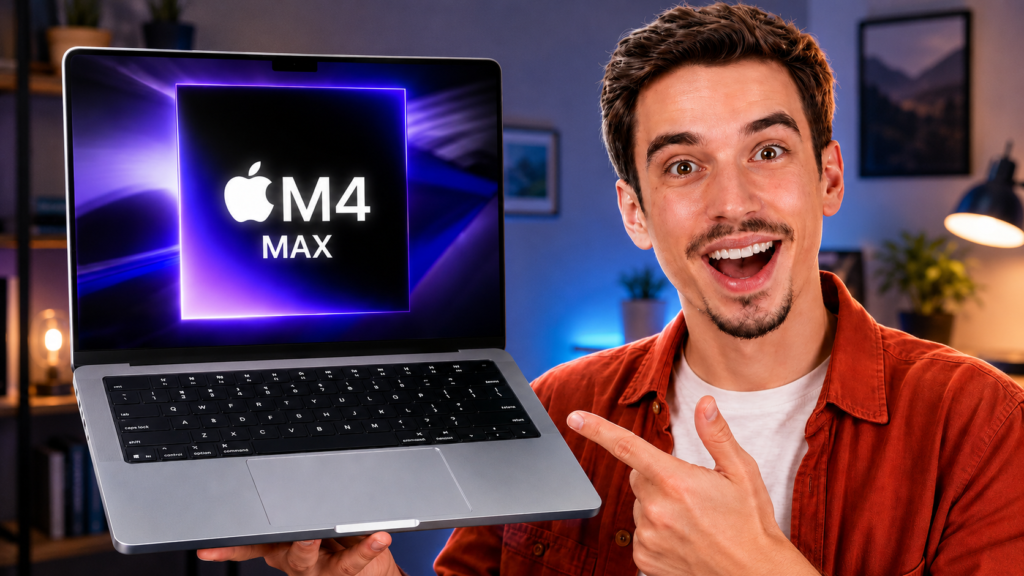
This is the fastest laptop chip you can buy. I spent a week trying to make it sweat, and the more interesting question turned out to be whether you need it at all.
The Quick Verdict
The M4 Max is the top of the lineup, and it’s a monster. It chews through 4K and 8K video, heavy 3D, and huge RAW libraries without flinching, and it can run local AI models that most laptops can’t even load. But here’s the honest part after a week with it: most people who think they need a Max would be perfectly happy with the M4 Pro for a lot less money. And if you do go Max, the 16-inch is the one to get, because the 14-inch can’t fully cool this chip under sustained load.
Buy it if
- You do sustained 8K video, heavy 3D, or complex color grading
- You run large local AI models that need lots of memory
- You process massive RAW photo libraries daily
- Your time is money and render speed pays for itself
Skip it if
- Your heavy work is occasional, not daily (get the M4 Pro)
- You want the Max in a 14-inch for portability (it throttles)
- You mostly edit 1080p or light 4K
- You can’t name the exact task that needs it
| Spec | M4 Pro | M4 Max (this review) |
|---|---|---|
| CPU | 12 or 14-core | 14 or 16-core |
| GPU | 16 or 20-core | 32 or 40-core |
| Memory bandwidth | 273GB/s | 410 or 546GB/s |
| Memory options | 24 to 64GB | 36 to 128GB |
| Ports | 3x Thunderbolt 5 | 3x Thunderbolt 5 |
| Starting price (14″) | $1,999 | $3,199 |
| Starting price (16″) | $2,499 | $3,999 |
Design and Build: The Familiar Powerhouse
On the outside, this is the same MacBook Pro you already know. Same chassis, same Space Black finish, same premium feel. Nothing has changed physically, and after years of this design, I still think it’s excellent. The keyboard and trackpad remain the best in the business, and the whole thing feels built to last.
The 16-inch Is the One to Get for the Max
Let me flag the most important buying decision up front, because it drove a lot of my week with this laptop. If you’re putting the Max chip in a machine, get the 16-inch. The larger body has more room for cooling, and it holds the chip’s performance far better under sustained load. The 14-inch can technically take the Max, but as I’ll get into, it runs hot and can’t keep the chip at full speed for long. More on that in the thermals section.
Space Black, Ports, and a Build That Still Holds Up
The port selection is proper Pro fare: three Thunderbolt 5 ports, HDMI, an SD card slot, MagSafe 3, and a headphone jack. That means fast external storage, multiple high-res displays, and card offloads without a dongle in sight. For anyone building a high-end creative setup, the connectivity alone is part of the value. You can read more of how I think about building around a machine like this in our productivity workflow guides.
The Display Is Still the Best on Any Laptop
The Liquid Retina XDR panel remains, to my eyes, the best screen on any laptop. It’s a mini-LED display with deep blacks, superb color, and real HDR. For color-critical work, having this quality of screen built in is a genuine advantage.
Is the Nano-Texture Display Worth It on the Max?
If you’re spending Max money, the nano-texture glass option is worth a serious look. It cuts glare dramatically, which makes a real difference if you ever work outside or in a bright studio. For a color grader or photographer who needs consistent viewing conditions, it’s easy to justify. If you work in controlled indoor lighting, the standard glossy panel is a touch punchier and you can keep the money.
What 1000-Nit SDR Brightness Changes for Creative Work
The everyday brightness climbs to 1000 nits, and HDR content peaks higher still. Most of the time you’re working in standard brightness, and that higher number keeps the screen readable in bright rooms where other laptops wash out. For creative work near a window or on location, it’s the kind of upgrade you feel constantly even though it doesn’t show up in a spec war.
MacBook Pro M4 Max Performance in Real-World Use
This is where the Max is supposed to pull away, so I threw my heaviest real work at it. The config I spent the most time with was the 16-core CPU, 40-core GPU version, and it is seriously fast.
How Much Faster Is the M4 Max Than the M4 Pro?
In CPU work, the gap is real but smaller than the price difference suggests, roughly 17% faster in multi-core over the M4 Pro. The bigger story is the GPU. The Max doubles the graphics cores, and its memory bandwidth climbs to 546GB/s. In synthetic tests, the M4 Max’s Blender numbers land in the neighborhood of a desktop-class RTX 4080, which is wild for a laptop. But that GPU only pays off if your work actually leans on it. If it doesn’t, you’re paying for cores that sit idle. You can see how we structure these comparisons in our performance tests.
Is the M4 Max Good for Video Editing and 3D?
This is the chip’s home turf. Editing 4K and 8K footage in Final Cut, Premiere, and DaVinci Resolve was effortless, with smooth timeline playback and quick exports even with plugins and effects stacked on. In creative benchmark testing, the Max handled heavy Lightroom RAW batches and Resolve exports at a level that rivals far bigger machines.
What stood out most was timeline scrubbing on heavy projects. Complex multicam and color work that would make lesser machines drop frames just played back cleanly. If you live in these apps every day, that smoothness is where the Max quietly earns its price. For occasional projects, though, the M4 Pro does the same work with only slightly less headroom.
How Does the M4 Max Handle Large Local AI Models?
This is the Max’s other real advantage, and it’s the reason some people should buy it. With up to 128GB of unified memory and that huge bandwidth, I could load large local AI models that simply won’t fit on lesser chips. Running big models on-device was fast and stayed private, with no cloud round-trip. If you work with running large local AI models, the memory ceiling matters more than any benchmark score, and it’s something no amount of CPU speed on a smaller chip can make up for.
Battery, Thermals, and the 14-inch Problem
Here’s the section that actually changed my buying advice, so I want to be direct about it.
Does the M4 Max Throttle in the 14-inch MacBook Pro?
Yes, and this is the single most important thing to know before you buy. In the 14-inch body, the Max chip runs hot under sustained load and can’t be cooled well enough to hold full speed for long. Testing has shown the smaller chassis limits the chip’s potential during long, heavy tasks. The 16-inch handles the same chip much better thanks to more cooling headroom. There’s also a High Power mode you can switch on for intensive sustained work, which lets the fans spin faster to keep performance up. If portability in a 14-inch is your priority, that’s actually a strong argument to step down to the M4 Pro, which runs cooler in the same body. Our Mac optimization guides cover how to keep it cool and running its best.
How Long Does the M4 Max Battery Last?
Battery life is still very good, just not the record-setting number you’ll see quoted for the base chips. Those all-day figures come from the efficient base M4, and the Max naturally draws more power, especially when you’re actually using all those cores. For mixed work I got through a full day comfortably, but under heavy rendering the battery drains faster, as you’d expect from a chip this powerful. Plugged in for the heavy stuff, unplugged for everything else, is how I’d use it.
Do You Actually Need the M4 Max?
This is the question that matters most for a chip this expensive, so let me answer it honestly.
When the M4 Pro Is the Smarter Buy (Most People)
For the majority of people, even a lot of serious creatives, the M4 Pro is the smarter choice. It handles video editing, code, and heavy multitasking beautifully, runs cooler, and costs meaningfully less. The old rule fits perfectly here: buy for the heaviest task you do every week, not the heaviest one you might try once. If your demanding work is occasional rather than daily, the Pro is plenty and you keep a good chunk of money.
Who the M4 Max Is Genuinely For
The Max makes sense for a specific group, and if you’re in it, you already feel the pain the Pro would leave on the table. That’s people doing sustained 8K video, heavy 3D rendering, complex color grading, massive RAW workflows, or large local AI models every single day. If you’re upgrading from an older M1 Max or M1 Pro and you push your machine hard, the time saved on renders adds up fast. For everyone else, the honest truth is you’d be paying for power you won’t use.
Which Max Config and How Much RAM Should You Get?
Because you can’t upgrade later, this is the decision to get right. The 16-core, 40-core GPU version is the true Max experience, while the 14-core option is a middle step. For memory, think about your actual work: 36GB or 48GB is fine for most heavy video and photo workflows, while large AI models and enormous projects are where 64GB or 128GB start to make sense. And if you’re doing sustained heavy work, put that chip in the 16-inch so it can actually run at full speed.
The Bottom Line
After a week of trying to overwhelm it, the M4 Max proved it’s the most powerful laptop chip you can buy, and it’s genuinely thrilling for the people who need it. But the more useful takeaway is restraint. Most people are better served by the M4 Pro, and anyone who does go Max should get the 16-inch so the chip can breathe.
If you do sustained 8K, heavy 3D, or big local AI work every day, this is the laptop that pays for itself. If you’re not sure that’s you, it probably isn’t. Either way, check out our other MacBook reviews and benchmarks to find the right fit for your work.