
If your MacBook Pro’s screen is doing something weird at the bottom, like a dim strip that looks like stage lighting, or the display goes completely dark when you open the lid past a certain angle, you’re probably dealing with the MacBook Pro 2016 backlight issue. It has a name: Flexgate. And it’s not your fault.
This is a known design flaw that Apple stayed quiet about for years. The problem affects a specific generation of MacBook Pros and, unfortunately, it tends to show up well after the warranty has expired. In this guide, I’ll walk you through what’s actually happening, how to confirm the issue, and what your real fix options look like in 2026, including whether Apple will still help you out.
What Is the MacBook Pro 2016 Backlight Issue?
The Short Cable Apple Didn’t Want to Talk About
When Apple redesigned the MacBook Pro line in 2016, they moved the display controller board from inside the hinge cover (where it sat quietly for years) into the main chassis beneath the Touch Bar. That meant the flex cable connecting the display now had to wrap around the hinge every time you opened and closed your laptop.
The cable they used was too short. Not by much, but enough. Every time you opened your lid, the cable flexed and bent under tension. Do that a few thousand times over a couple of years, and the cable starts to crack. The backlight circuit goes first, which is why you see the backlight problems before anything else.
iFixit was the first to document this properly, and that’s when the name “Flexgate” stuck.
Which Models Are Affected
The issue primarily affects these models:
- MacBook Pro 13-inch, 2016 (A1706, with Touch Bar)
- MacBook Pro 13-inch, 2016 (A1708, without Touch Bar)
- MacBook Pro 15-inch, 2016 (A1707, with Touch Bar)
- MacBook Pro 13-inch and 15-inch, 2017 models
Apple made the cable about 2mm longer in 2018 models, which seems to have reduced the rate of failure. It wasn’t a fix exactly, more of a quiet correction. And yes, some 2018 and 2019 machines have still shown up with the same issue, just less frequently.
How Do You Know If Your MacBook Has the Backlight Issue?
The “Stage Light” Effect
The most common early sign is uneven lighting along the bottom of the display. You’ll see alternating bright and dim vertical strips, almost like a row of stage spotlights pointed upward. It’s usually most visible on light-colored backgrounds or when brightness is turned up high.
A lot of people notice this first in browser windows or document editors, which makes sense. It’s easy to miss on a dark background.
Screen Goes Dark When Opened Past a Certain Angle
This is the more dramatic symptom. Open the lid to around 40 or 50 degrees and the screen works fine. Push it further toward fully open and the screen cuts to black entirely. The laptop is still running, the display is still technically on, you just can’t see anything.
Some people discover this by accident when they lean their laptop back further than usual. Others find the laptop only works propped at a specific angle.
Quick Torch Test to Confirm It
Here’s something useful: if your screen has gone dark but you’re not sure whether it’s the backlight or something worse, grab a flashlight and shine it directly at the screen at a close angle. If you can make out a faint image underneath, the display itself is working. Only the backlight has failed.
That’s a pretty clear sign you’re dealing with Flexgate and not a logic board issue or a dead display panel.
Why Does This Happen?
The 2016 Redesign That Caused the Problem
Before 2016, the display cable in MacBooks ran inside the hinge cover and barely moved. It was a non-issue. The 2016 redesign changed the entire internal layout, and the cable now had to travel a longer path around the hinge on every open and close.
The problem is that the cable is a delicate ribbon, not a wire. It has a limited number of flex cycles before the internal traces start to crack. Apple’s choice to make it shorter than it needed to be meant those cracks arrived years earlier than they should have.
What makes it especially frustrating is that the cable is soldered directly to the display, so you can’t just swap the cable. The standard Apple fix has always been to replace the entire display assembly, which runs $600 or more out of warranty.
How Apple Eventually (Sort of) Addressed It
After significant public pressure and a Change.org petition that gathered tens of thousands of signatures, Apple launched a free display backlight service program in May 2019. They acknowledged that a small number of 13-inch 2016 MacBook Pro displays could show vertical bright areas or total backlight failure.
Honestly, “small number” was doing a lot of work in that statement. The issue was widespread.
That said, the program was real, and if your machine qualified, Apple would replace the display at no cost.
Is Apple Still Covering This for Free?
The Original Repair Program and Who It Covered
Apple’s backlight service program covered:
- MacBook Pro 13-inch, 2016 (Two Thunderbolt 3 Ports)
- MacBook Pro 13-inch, 2016 (Four Thunderbolt 3 Ports)
Eligible machines were those sold between October 2016 and February 2018. The program ran for four years from the original sale date, which means for most 2016 machines, that window has closed.
The 15-inch models were never included, even though they face the exact same issue. Neither were the 2017 models. That was a frustrating call that a lot of affected users are still vocal about.
What to Try If Your Model Isn’t Eligible
It’s still worth calling Apple directly, especially if you haven’t tried. Some users report getting goodwill repairs even after the official program window, particularly if they push politely through phone support rather than going into a store.
It’s not guaranteed, but it costs nothing to ask. Be clear about what the problem is, mention that it’s a known design flaw, and see where it goes.
Your Fix Options in 2026
Third-Party Cable Extension Repair ($199-$299)
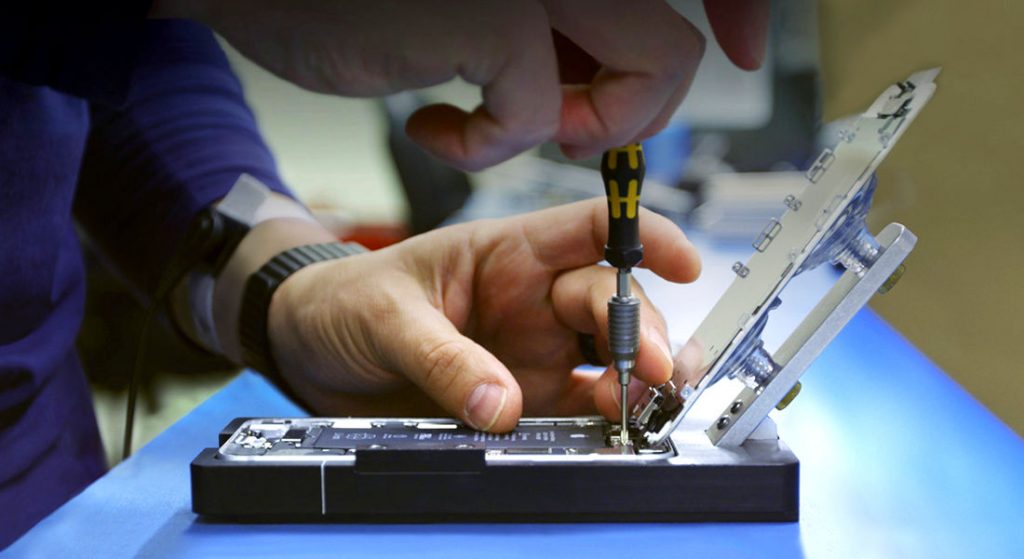
This is the most practical option for most people right now. Several specialist repair shops have developed a micro-soldering method where they extend the existing backlight cable by a few millimeters, relieving the stress that caused the crack in the first place.
Shops like MackTechs in Philadelphia charge around $199 for 13-inch models and $249 for 15-inch, with a one-year warranty included. UKSL MacLab in the UK makes their replacement cables 3-4mm longer than stock, using the same logic Apple eventually applied to the 2018 design. Vancouver Mac Service Centre has done close to 100 of these repairs with a strong track record.
The repair looks factory standard when done well. You won’t be able to tell unless someone opens the display assembly and inspects the cable directly.
This is the route I’d look at first before spending $600+ on a full display replacement.
Full Display Replacement
If the cable extension isn’t available from a shop near you, or if there’s additional damage (some machines also develop camera cable failures through the same mechanism), a full display assembly replacement is the other option.
It’s more expensive, but it’s also the most straightforward fix. Apple uses this approach even in their own service program. Third-party display assemblies are available, though quality varies, so it’s worth going through a shop with a warranty rather than sourcing a panel yourself.
DIY (and Why It’s Risky)
There are YouTube tutorials showing how to do the cable extension yourself, and technically it’s possible. But it requires micro-soldering at a level that most people don’t have the tools or experience for.
If you try the copper jumper wire method that some guides show, be aware that those jumpers tend to fail over time since they can’t handle the same repeated bending the cable endures. It’s a temporary fix at best.
Unless you already have soldering skills and a decent microscope, I’d leave this one to a shop.
Should You Even Keep Using This MacBook?
If It’s Your Daily Driver, Here’s the Honest Take
A 2016 MacBook Pro is nine or ten years old now. The hardware isn’t bad for light to moderate use, browsing, documents, video calls, even some light creative work. But you’re on an Intel chip that Apple stopped supporting in a major macOS version, which means security and app support are slowly narrowing.
If the repair costs $199-$299 and you’re getting solid daily use out of it with no other problems, that can still make sense. Especially if you’re not ready to buy a new machine right now. Check out TheByteLab’s MacBook reviews and benchmarks if you want a clearer picture of what the current generation looks like by comparison.
When It Makes More Sense to Move On
If the display repair is just one of several issues, the battery is degraded, the keyboard has problems, or the machine is running hot under any real workload, the math shifts quickly. Stacking repairs on aging hardware usually isn’t the play.
The current MacBook lineup, especially anything with an M-series chip, runs in a completely different class for real-world performance. If you’re doing anything CPU or memory-intensive, the difference will be obvious within a week of switching.
Wrapping Up
The MacBook Pro 2016 backlight issue is a genuine design flaw, not wear and tear, and not something you caused. Apple’s free repair window is mostly closed now, but third-party cable extension repairs have become a reliable and affordable option at $199-$299 depending on your model size.
If your screen is showing stage lighting or cutting out when you open the lid fully, confirm it with the torch test first. Then look for a repair shop with specific Flexgate experience, not just a general electronics repair place.
For more Mac troubleshooting help, the Mac fixes and optimization guides on TheByteLab cover a range of common issues. And if you’re weighing whether to repair or replace, the tech fixes hub has some useful framing for that decision too.