
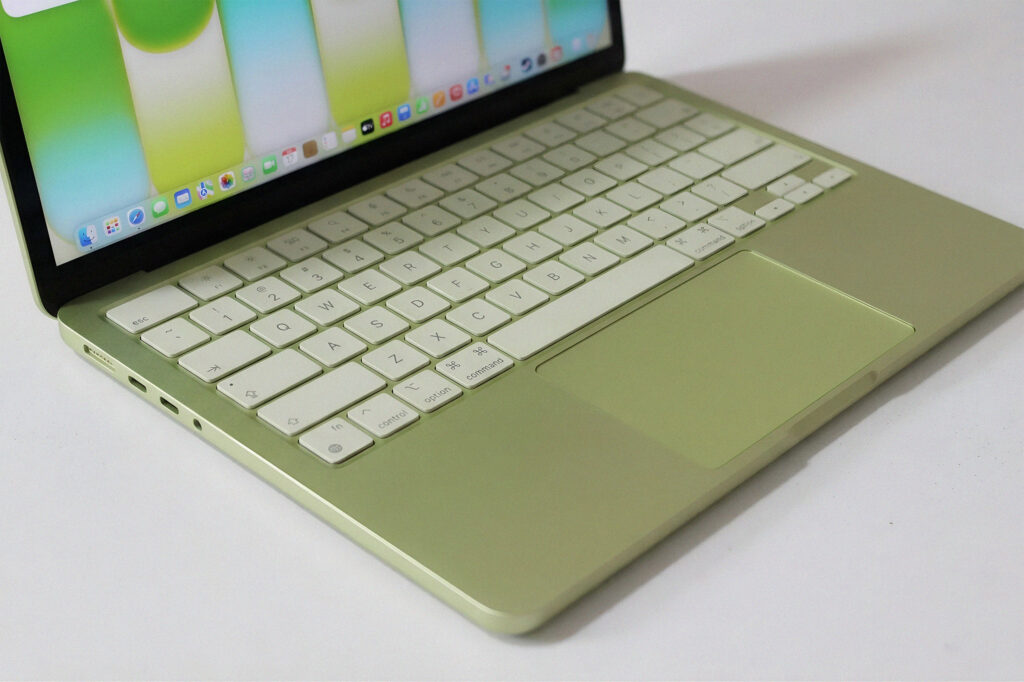
You just dropped over a thousand dollars on a MacBook. Maybe more. And now it’s hot to the touch, the fans are screaming (or suspiciously silent), and everything feels sluggish on tasks it should handle without breaking a sweat.
That’s macbook overheating territory. And if you own a MacBook Neo, there’s a specific reason it’s happening that Apple won’t walk you through in a support article.
Here’s what’s actually going on, what a cheap thermal pad does to fix it, and whether you should even bother. No fluff.
Why Is My MacBook Pro So Hot in the First Place?
This is the question most people start with. You’re not imagining it. Your Mac is running hot, and it’s doing it on purpose.
Apple’s Design Tradeoff Nobody Talks About
Apple builds MacBooks to be thin, light, and quiet. That sounds great until you realize those three goals are in direct conflict with keeping a powerful chip cool.
The fans run at lower RPMs to stay quiet. The chassis is slim, which limits how much airflow there is to work with. And on fanless models like the MacBook Air line, there’s no active cooling at all. Just aluminum and hope.
This feels like a very intentional compromise. Apple has decided that most users would rather have a silent, thin machine than a loud one that stays cool under pressure. For casual workflows, that’s fine. For anything that pushes the chip hard, you start to feel the tradeoffs pretty fast.
What Thermal Throttling Actually Does to Your Performance
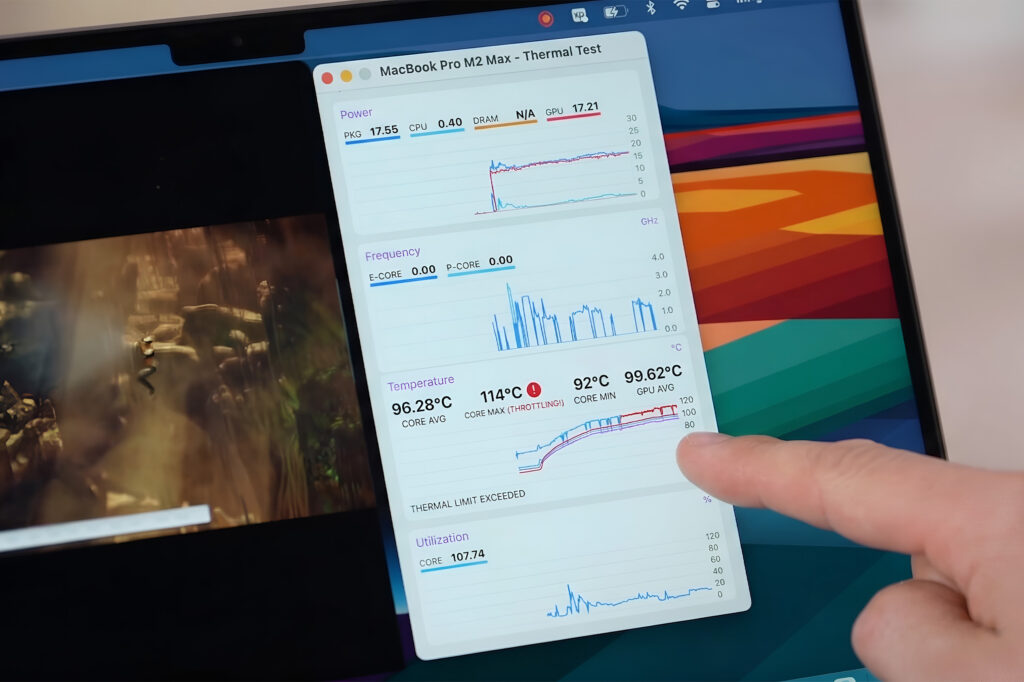
Thermal throttling is the chip’s self-protection system. When temperatures climb too high, the processor drops its clock speed to generate less heat. It’s not broken. It’s working as designed.
But what it means in practice is that your Mac slows down mid-task. Video exports take longer than they should. Cinebench scores drop noticeably between runs. Renders that start fast lose steam after a few minutes.
It’s not a crash. It’s more like the Mac quietly backing off while you’re waiting on it. For a lot of people, that’s the actual experience they’re describing when they say their macbook keeps overheating and feels slow.
The MacBook Neo Overheating Problem Is Different
The MacBook Neo is where this gets more specific and more interesting.
Fanless Design Meets a More Powerful Chip
The MacBook Neo uses passive cooling only. No fan. Heat has to travel through the logic board and into the aluminum chassis on its own. That worked reasonably well on earlier Apple Silicon chips, but as the chips have gotten more powerful, the passive system is being pushed harder.
In 2022, adding thermal pads to the M2 MacBook Air improved sustained benchmark scores by aiding heat dissipation, with a thermal pad-modified MacBook Air scoring around 930 points higher in Cinebench than the stock version, roughly an 8 to 10 percent improvement in sustained performance.
The MacBook Neo follows the same basic architecture. More performance potential, same passive cooling design. Something has to give.
How Bad Does It Get Under Load?
It depends on what you’re doing. Light work, browsing, writing, basic design tasks, you’ll likely never notice.
Push it into video encoding, 3D rendering, or back-to-back Cinebench runs and it’s a different story. Community testing reveals that performance gains during extended sessions are where the stock thermal management would normally force significant performance reductions, with the real benefits emerging during workloads that trigger aggressive throttling.
So if your daily driver is mostly light, you might be fine. If you’re doing creative work or anything computationally heavy, the mac overheating issue will show up eventually. Check out our MacBook reviews and benchmarks for real-world comparisons that show exactly where these limits start to matter.

The $20 Thermal Pad Fix (And What It Actually Does)
This is the part Apple won’t walk you through. And honestly, it works.
What You’re Buying and Why It Works
The fix is simple: a thin thermal pad placed between the chip area and the aluminum bottom case. Thermal pads like the 1mm Arctic TP-3 silicone pad are inexpensive and widely used for electronics cooling. A thermal pad placed on top of the chip area presses against the aluminum bottom case when the laptop is reassembled, transferring heat from the processor into the aluminum shell instead of letting it accumulate around the chip. Better heat transfer allows the processor to maintain higher speeds before thermal throttling begins.
You’re basically giving the heat somewhere to go faster. The chip stays cooler, throttling kicks in later, and sustained performance improves.
The Arctic TP-3 runs about $8 to $12 on Amazon. The PTM7950 pad is another popular option, around $35, but reusable across multiple applications.
Step-by-Step: How to Apply It
This requires opening the laptop. It’s not complicated, but it voids your warranty and carries real risk if you’ve never done it.
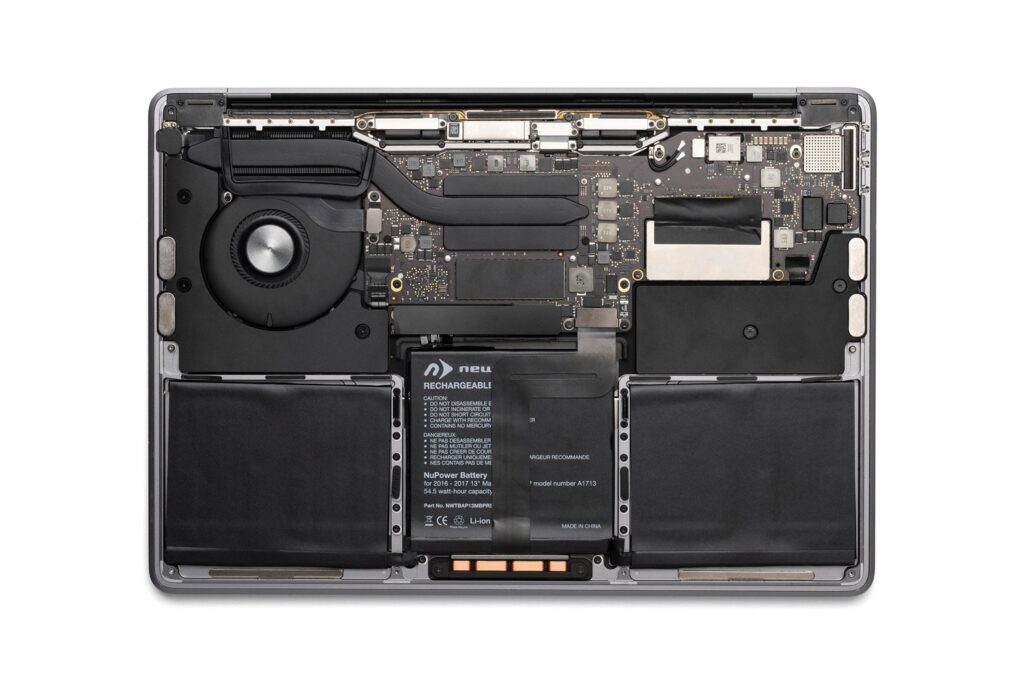
Accessing the processor area requires removing the MacBook Neo’s bottom case, which is secured with several screws, and the system-on-a-chip sits near the center of the logic board beneath a heat spreader.
Here’s the process in plain terms:
- Power down completely and disconnect everything
- Remove the bottom screws (Pentalobe screwdriver, P5 size)
- Gently pop the bottom case off
- Locate the chip area near the center of the logic board
- Cut a 1mm thermal pad to size and place it over the chip
- Reassemble, making sure the pad makes contact with the case
- Test with a benchmark tool and monitor temps
If the MacBook Neo ever needs warranty service, users need to remove the thermal pads first and restore the system to its original configuration. Apple can deny warranty repairs if damage is determined to be caused by unauthorized modifications.
So if you go this route, keep that in mind.
Real Numbers: What to Expect After the Mod
Early adopters report notable improvements in sustained CPU and GPU performance, particularly during extended rendering sessions or heavy computational workloads. The gains tend to be in the 8 to 15 percent range depending on the workload, and they show up most clearly in longer tasks, not short bursts.
For short tasks, the difference is minimal. For anything running 10+ minutes under load, that’s where you see the macbook overheating fix actually pay off. See our performance benchmark tests page for the kind of test methodology that gives you real numbers on this.
Should You Actually Do This? (Honest Tradeoffs)
Here’s where I’d pump the brakes a little.
The Warranty Risk Is Real
If your Mac is still under warranty or AppleCare, don’t do this. It’s not worth it. The mod is reversible in theory, but Apple checks for signs of modification during service. If they spot anything, they can deny the repair entirely.
Wait until you’re out of warranty, or until it’s an older machine you’re comfortable tinkering with.
The Hot Bottom Case Problem
Here’s the thing nobody mentions in the YouTube thumbnails: the thermal pad makes the bottom of your Mac noticeably hotter. The aluminum shell becomes hotter during heavy workloads, which can make the laptop uncomfortable to hold or use on a lap. Some discussions note that thermal pad modifications can create hot spots on the case surface during extended tasks.
Community members who’ve done the mod note that the bottom case gets hot like a cup of tea, requiring a cooling pad to use comfortably afterward.
So you fix one problem and create a mild version of another. For a desk setup, it’s fine. For lap use, you’ll want a cooling stand anyway.
For more context on what fixes are worth it and which ones aren’t, the Mac fixes and optimization guides section covers this kind of tradeoff across different models.
How to Stop Your Mac From Overheating Without Opening It
Not ready to crack open the case? That’s fair. There are things you can do first that cost nothing.
Free Software Fixes First
Start here before anything else:
Macs Fan Control lets you manually set higher fan speeds on MacBook Pro models. The fans are intentionally set to spin up late by default. Bumping them earlier keeps temps lower during sustained tasks.
Activity Monitor is your first diagnostic tool. Sort by CPU usage. If something is consuming 100% CPU for no obvious reason, kill it. Background processes like an indexing task or a runaway browser tab cause a huge chunk of mac overheating complaints.
Reduce background processes at startup. Go to System Settings, General, Login Items, and cut anything you don’t actually need running at launch. Fewer idle processes means a cooler baseline temperature.
Does a Cooling Pad Actually Help?
Honestly, yes, more than most people expect.
Laptop cooling pads with fans blowing air underneath the laptop can dramatically cool off operating temperatures, and thermal stress is what ages a computer faster than almost anything else.
A $20 to $40 cooling stand with a built-in fan gives you airflow under the chassis. On a fanless Mac like the Neo, that’s meaningful. You’re supplementing the passive cooling from the outside. It won’t give you the same gain as the thermal pad mod, but it’s zero risk and you can do it right now.
Check our troubleshooting guides for more options that don’t require opening anything up.
The Bottom Line on MacBook Neo Overheating
MacBook Neo thermal throttling is a real, documented tradeoff of passive cooling in a thin chassis. It’s not a defect. But it does mean sustained heavy workloads will hit a ceiling faster than on a fan-cooled MacBook Pro.
The $20 thermal pad fix genuinely helps, with real benchmark improvements in the 8 to 15 percent range for sustained tasks. But it voids your warranty, makes the bottom case hotter, and requires opening a machine that wasn’t designed to be user-serviceable.
If your Mac is still under warranty: start with fan control software and a cooling pad. If it’s older and out of warranty: the thermal pad mod is worth considering if you do heavy creative work and want to squeeze more sustained performance out of it.
Either way, now you know what Apple isn’t telling you.
Have you tried the thermal pad mod on your MacBook? Or found another fix that actually worked? Drop it in the comments.



2 Responses
Hi! This post couldn’t be written any better! Reading through this post reminds me of my old
room mate! He always kept chatting about this. I will
forward this article to him. Pretty sure he will
have a good read. Thank you for sharing!
Yes! Finally something about 스포츠중계.